Time to Read:
About 1 minute
This information will explain how to set up and use your Fitbit® Inspire 2
- Download the Fitbit app from the iOS or Google Play Store (see Figure 1).

- Fitbit requires a Google account to use the app. Select “Sign in with Google” to create a new account. If you already have a Fitbit® account, you can sign in here (see Figure 2).

- If you do not have a Fitbit® account, select “Continue as a new user” (see Figure 3).

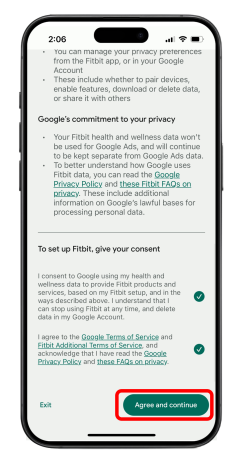
- Read the Privacy Policy, then select the check boxes. Tap “Agree and continue” (see Figure 4).
- Create your Fitbit® profile by entering your weight, height, and sex. Tap “Save & continue” (see Figure 5).

- Your Fitbit® account has now been created. Tap “Continue” (see Figure 6).

- There is question about participating in Fitbit® research. Select “No thanks” (see Figure 7).

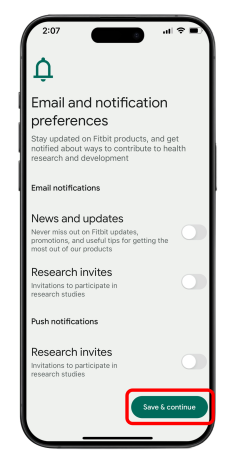
- Choose your email and notification preferences. Tap “Save & continue” (see Figure 8).
- Tap “Add device” to setup your device (see Figure 9).

- Select the “Inspire 2” (see Figure 10).

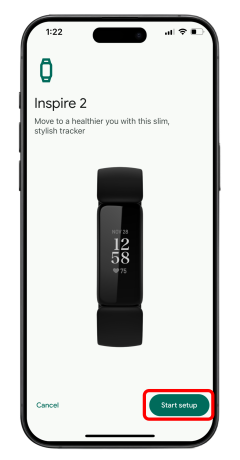
- Select “Start setup” (see Figure 11).
- Review the Fitbit Privacy Policy and select “I agree” (see Figure 12).

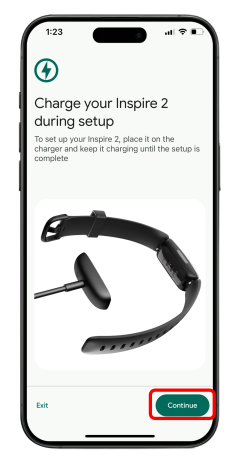
- Connect your Inspire 2 watch to its charger and select “Continue” (see Figure 13).
- The app will begin searching for the Inspire 2 watch (see Figure 14).

- Enter the 4-digit code displayed on your Inspire 2 activity tracker screen into the Fitbit app (see Figure 15).
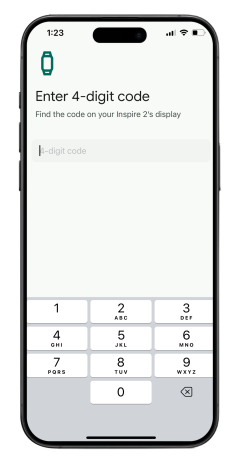
- Select “Pair” (see Figure 16).

- Your watch has been set up and is now ready for use. Select “Continue” (see Figure 17).
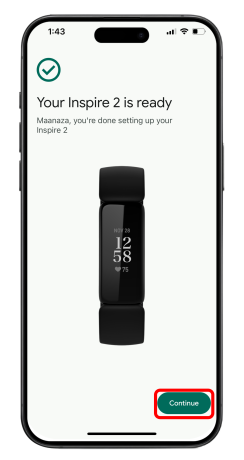
- Read the wear and care tips. Select “Continue” (see Figure 18).

- Fitbit offers a premium subscription that you do not need for your care at MSK. Select the “Not now” to remove the offer from your screen (see Figure 19).

-
Wear your watch as instructed by your doctor. Make sure to open the Fitbit app occasionally to sync the data from the watch to be sent to MSK.
Last Updated
January 23, 2025
Learn about our Health Information Policy.