Time to Read:
About 1 minute
This information will explain how to get a weight use the A&D UC-352BLE weight scale.
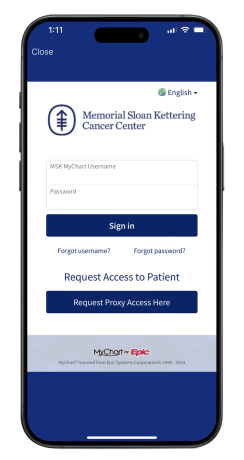
- Open the MSK Remote Monitoring mobile app and log in (see Figure 1).
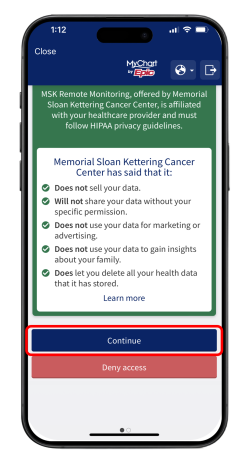
- Review the authorization screen and select “Continue” (see Figure 2).
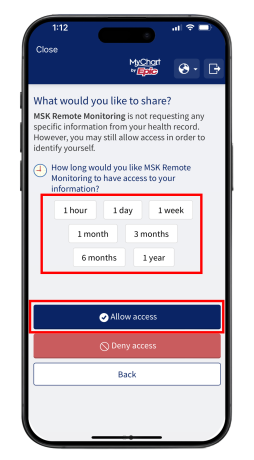
- Review the data authorization screen and select a time range, then tap “Allow access” (see Figure 3).
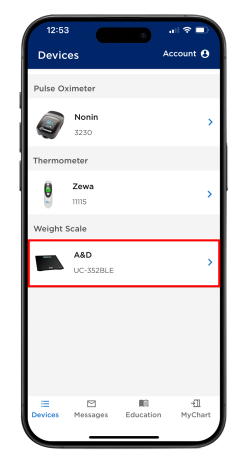
- On the devices screen look for the Weight Scale tile. Select A&D UC-352BLE (see Figure 4).
- Tap “Take a reading” (see Figure 5).

- The A&D weight scale requires is a one-time pair during the initial setup. In the MSK Remote Monitoring app, tap “Start pairing” to initiate the pairing process (see Figure 6). On the A&D weight scale, press and hold the Set button on the bottom of your scale.
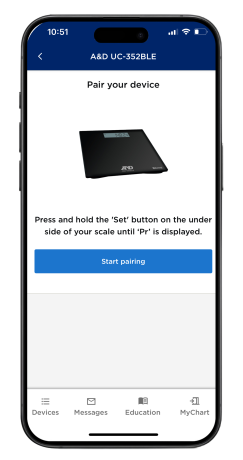
- Tap “Pair” when the pairing prompt appears (see Figure 7).

- You will see a message that your weight scale has successfully paired. To take a weight measurement tap “Take a reading” (see Figure 8).

- Step on to your weight scale. Step off the scale when “Step off” is shown on the scale (see Figure 9).
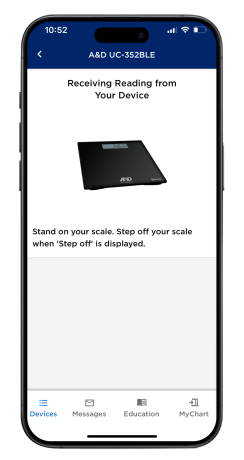
- Once the weight reading shows in the MSK Remote Monitoring app, tap “Submit” (see Figure 10).

- The screen will update to show your latest reading. You can view all your readings in the History tab. You can also view your readings as a graph in the Chart tab (see Figure 11).

Last Updated
January 20, 2025
Learn about our Health Information Policy.